
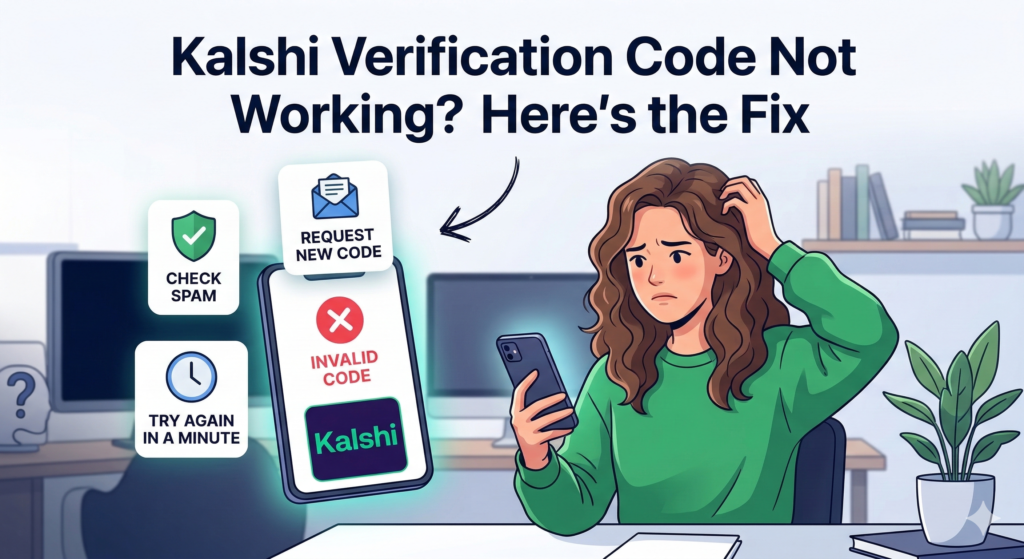
Let’s be honest — there are few things more irritating than being locked out of your own account. You signed up, you followed every step, and now a six-digit code stands between you and your first trade on one of the most talked-about prediction markets in America. Yet that code is either missing entirely, showing up late, or getting rejected the moment you type it in.
This happens to Kalshi users more often than the platform probably likes to admit. Across Reddit threads, iOS App Store reviews, and customer support forums, the same complaints surface again and again. The good news? Almost every case has a fix — and most of them take under five minutes.
This guide covers everything: why the code fails, how to resolve it on any device, what to do when you are on iOS, how to stop unwanted Kalshi emails, and the right way to contact Kalshi support when you need a real human to step in.
The Real Reasons Kalshi Verification Codes Stop Working
Understanding what is actually going wrong makes the fix far easier to find. There is no single cause — instead, there are five common culprits worth knowing about.
The Code Timed Out Before You Used It
Kalshi’s verification codes are not designed to last forever. They are built with a short expiration window — usually around 5 to 10 minutes — as a security measure. If you walked away from the screen, switched apps, or simply took too long, the code became invalid before you ever had a chance to enter it. This is probably the single most common reason the login fails even when the code arrived safely.
Your Email Provider Sent It Straight to Spam
Email filters are aggressive, and platforms like Gmail, Yahoo Mail, and Microsoft Outlook treat automated messages with a great deal of suspicion. Kalshi’s verification emails come from an automated system, which makes them exactly the kind of message those filters love to intercept. The email is almost certainly sitting in your junk folder right now — which is why that is always the first place to look.
There Is a Typo Hiding in Plain Sight
Verification codes are unforgiving. One wrong character and the whole thing fails. The tricky part is that some characters are genuinely hard to tell apart at a glance — zero versus the letter O, the number one versus a lowercase L, and so on. If you copy-pasted the code, there is also a chance a stray space traveled along with it, which is just as effective at causing a failure.
Kalshi’s Servers Are Running Behind
During high-traffic moments — think major news events, market volatility, or a platform update rolling out — Kalshi’s email delivery system can experience delays. The code may not be lost; it might simply be on its way. Waiting 15 to 20 minutes before requesting a new code is sometimes the most sensible approach during these windows.
Your App or Browser Is Working Against You
An outdated version of the Kalshi mobile app, stale data cached in your browser, or a third-party extension interfering with the login page can each prevent a perfectly valid code from being accepted. Technology creates its own friction sometimes, and this is one of those moments.
How to Fix Kalshi Verification Code Not Working: Every Solution That Works
Start With Your Spam Folder — Seriously
This step sounds too simple, and that is exactly why so many people skip it. Do not skip it. Open your email account right now and navigate to the spam, junk, or promotions folder. Search for any message from kalshi.com or the specific address noreply@kalshi.com. There is a better-than-average chance the email is sitting right there.
When you find it, open it and retrieve the code. While you are there, mark the message as “Not Spam” or add the sender to your contacts. This one small action trains your email provider to handle future Kalshi messages correctly, so you do not have to repeat this process every time you log in.
Get a Fresh Code Instead of Reusing an Old One
If the code expired — or if you simply cannot find the original email — requesting a new code is almost always faster than troubleshooting the old one. Go back to the Kalshi login screen and look for the option to resend the code. Click it, then switch directly to your email and wait. Set a two-minute timer. Do not try to use any previous code during this window.
Read Every Character Before You Type
Before entering the code, slow down and look at it carefully. Verification codes are typically a mix of letters and numbers, and certain characters are designed to trip people up. Type each character individually rather than pasting the whole code at once. If you are pasting it, click into the field first, paste, then scan for any unexpected spaces before hitting confirm.
Open an Incognito Window or Switch Browsers
Your regular browser carries a lot of baggage — cookies, cached files, session data, and extensions that can all interfere in ways that are difficult to diagnose. Opening a private or incognito window wipes most of that out. Try logging into Kalshi from there and entering the new code you just requested.
If the incognito approach does not resolve it, try a completely different browser. If you were using Chrome, switch to Firefox or Edge. Sometimes the issue is browser-specific and switching is the fastest path to a solution.
Disable Extensions and VPNs Temporarily
Ad blockers, privacy extensions, and VPNs are great tools in most situations — but they can quietly break authentication flows. Before your next login attempt, disable any active browser extensions and switch off your VPN. Once you are successfully logged in, you can turn them back on.
Update or Reinstall the Kalshi App
If you are on mobile, head to the App Store or Google Play Store and check whether a Kalshi update is available. App updates frequently include bug fixes for exactly these kinds of login and authentication issues. Install the update, restart your phone, and try again.
If updating does not help, try a clean reinstall. Delete the Kalshi app entirely, download it fresh, and attempt the login from the beginning. This clears out any corrupted local data that might be interfering behind the scenes.
Check Your Internet Connection
This is easy to overlook, but a weak or unstable connection can prevent the verification page from properly communicating with Kalshi’s servers. Try switching from Wi-Fi to mobile data or vice versa. If your connection seems fine, the problem likely lies elsewhere — but it is worth ruling out before moving on.
Kalshi Verification Code Not Working on iOS? Here Is Your Specific Fix
iPhone users sometimes experience a version of this problem that is slightly different from what desktop or Android users encounter, and the causes tend to be iOS-specific.
The most common iOS-related issue is Apple’s Mail app burying the verification email in a filtered folder. Unlike Gmail’s clear spam label, Apple Mail sometimes sorts transactional messages into obscure subcategories that are easy to miss. Check every folder in your mail app, including any automatically sorted sections.
Another iOS quirk worth knowing about: iPhones are built to recognize and suggest one-time passwords from SMS messages. If you recently received an OTP-style text from any source, your keyboard may try to autofill that code into the Kalshi field instead of letting you enter the one from your email. Always pull the correct code manually from your email app, and ignore any autofill suggestions that appear.
If the Kalshi app itself seems to be the problem — freezing, not loading the verification field properly, or rejecting valid codes — force-close the app completely and reopen it. If the issue continues, check Settings on your iPhone, navigate to the Kalshi app listing, and make sure no relevant permissions are disabled. A fresh install from the App Store remains the most reliable nuclear option if nothing else works.
Too Many Kalshi Emails? Here Is How to Handle the Spam Problem
Not everyone who searches for help with Kalshi and spam is trying to find a missing verification code. Some users are dealing with the opposite issue — emails from Kalshi showing up when they are not wanted or expected.
Kalshi communicates with its users through several different types of email. Security messages like verification codes are essential and cannot be turned off. But marketing emails, trading summaries, platform announcements, and promotional content are entirely optional. If your inbox feels overwhelmed, logging into your Kalshi account and reviewing your notification preferences is the fastest fix. Most of those extra emails can be turned off with a few clicks.
If you are receiving Kalshi emails but have never signed up for an account, someone likely entered your email address by mistake during their own registration. This is more common than it sounds, especially with addresses that are short or easy to type incorrectly. In this case, do not click anything inside those emails. Contact Kalshi support and explain the situation — they can locate the account in question and correct it.
How to Contact Kalshi Support Email the Right Way
There is a right way and a wrong way to reach out to any support team. Doing it correctly gets you a faster response and a better outcome.
To find Kalshi’s support email, visit kalshi.com and navigate to the Help Center. From there you will find either a direct support email address or a contact form you can use to submit your issue. Kalshi does not always make the support email immediately visible on their main pages, so going through the Help Center is the most reliable route.
When you write to them, include the following in your message:
Your account email address. This is how they will find your account — make sure it is the exact address you used when registering.
A specific description of the problem. Avoid vague phrases like “it does not work.” Instead, describe exactly what is happening: “I request a verification code, it arrives in my inbox, but when I enter it the page says it is invalid.”
Your device and operating system. For example: Samsung Galaxy S23 running Android 14, or iPhone 13 running iOS 17.2. This helps the support team quickly identify whether the issue is device-related.
Any error messages you are seeing. If there is text on screen when the failure occurs, include it word for word.
A list of what you have already tried. This prevents the support team from sending back a generic troubleshooting response you have already worked through.
Kalshi’s support team typically responds within one to two business days. Response times via live chat, if available at the time you reach out, tend to be significantly faster.
What Kalshi Users on Reddit Are Actually Saying
Reddit is one of the most reliable places to gauge whether a problem is isolated or widespread. Communities like r/Kalshi and r/PredictionMarkets have seen their fair share of verification code complaints, and the patterns that emerge from those threads are genuinely useful.
The spam folder fix comes up constantly. Dozens of users have posted about their verification code not arriving, only to return later and confirm that the email was in junk the entire time. This outcome is so common that many experienced community members now lead with it every time a new user raises the issue.
Platform-wide delays also get reported periodically, especially around high-activity events. Users in these threads generally advise patience and recommend waiting at least 20 to 30 minutes before contacting support, since the issue often resolves on its own.
One piece of practical advice that surfaces regularly in these communities: the moment you create a Kalshi account, add their sending domain to your email’s whitelist or safe senders list before you ever need a verification code. Doing it proactively takes about 30 seconds and completely eliminates the spam folder problem going forward.
FAQ:
Q: 1. Why does my Kalshi verification code show as invalid?
Ans. The code likely expired. These codes last only 5–10 minutes. Request a fresh one and enter it right away.
Q: 2. I never received my Kalshi verification code. What now?
Ans. Check your spam folder first. If it’s not there after 5 minutes, request a new code and verify your email address is correct.
Q: 3. How do I stop Kalshi emails going to spam?
Ans. Add Kalshi to your safe senders list. In Gmail, click “Filter messages like these” and select “Never send to Spam.”
Q: 4. Can I log into Kalshi without the verification code?
Ans. No. The code is required for every login. Contact Kalshi support directly if you cannot receive it.
Q: 5. Does Kalshi have phone support?
Ans. No phone line currently. Support is handled via email and their Help Center at kalshi.com.
You Are Closer to a Fix Than You Think
Getting stuck on a Kalshi verification code is one of those problems that feels bigger than it actually is in the moment. The truth is, for the vast majority of users, the answer is already sitting in their spam folder, waiting to be found.
Work through the steps in this guide in order. Check spam first. Request a fresh code. Try a private browsing window. Update or reinstall the app. Test your connection. For iOS users specifically, check every mail folder and skip the autofill suggestions. If none of that moves the needle, write a clear, detailed message to Kalshi’s support team and let them take it from there.
The platform is genuinely one of a kind — a legally regulated American prediction market with real depth and real stakes. A verification code hiccup is not a reason to walk away from it.
Save this guide somewhere accessible so you have these steps ready if the issue ever comes back. And take a moment right now to whitelist Kalshi in your email — it is the simplest thing you can do to make sure this never slows you down again.
Related Article
Kalshi Verification Code: What It Means and What to Do Next
Kalshi Lawsuit 2026: How One Startup Is Fighting 19 Legal Battles to Reshape American Betting
3 thoughts on “Kalshi Verification Code Not Working? Here’s the Fix”